Baby's First Year Photo Collage
Twelve months fit in your arms for such a short time, but they can live on a single page forever.
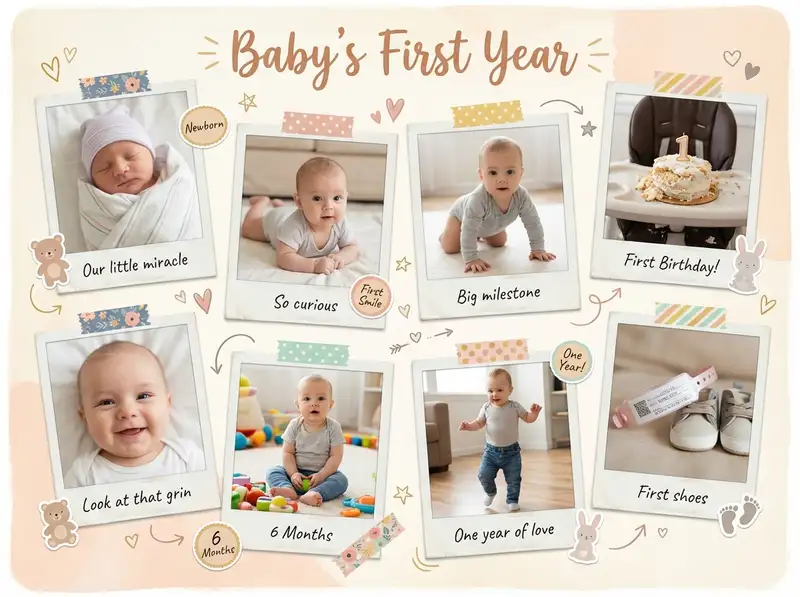
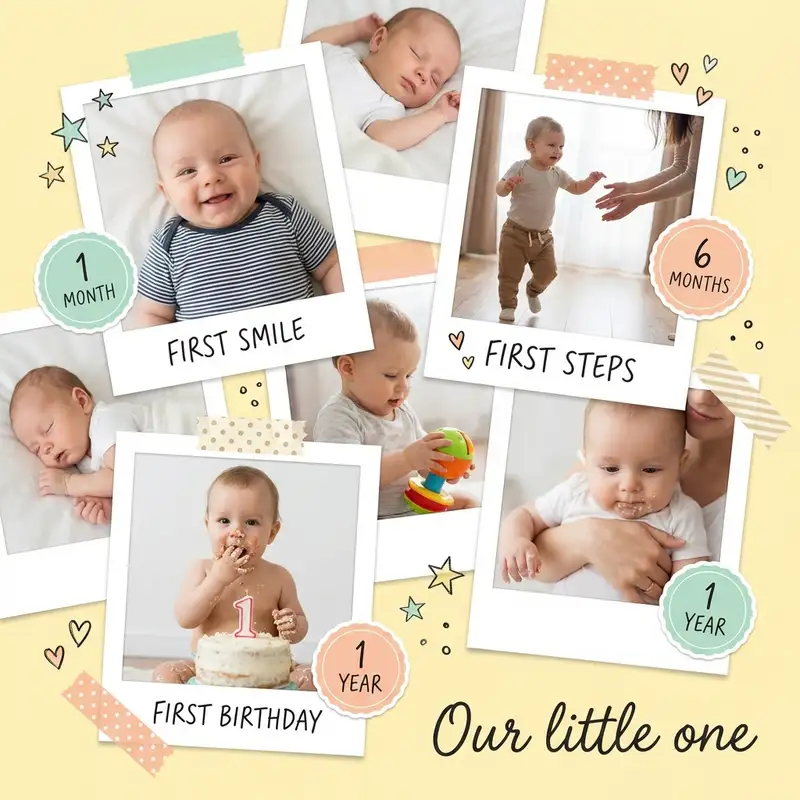
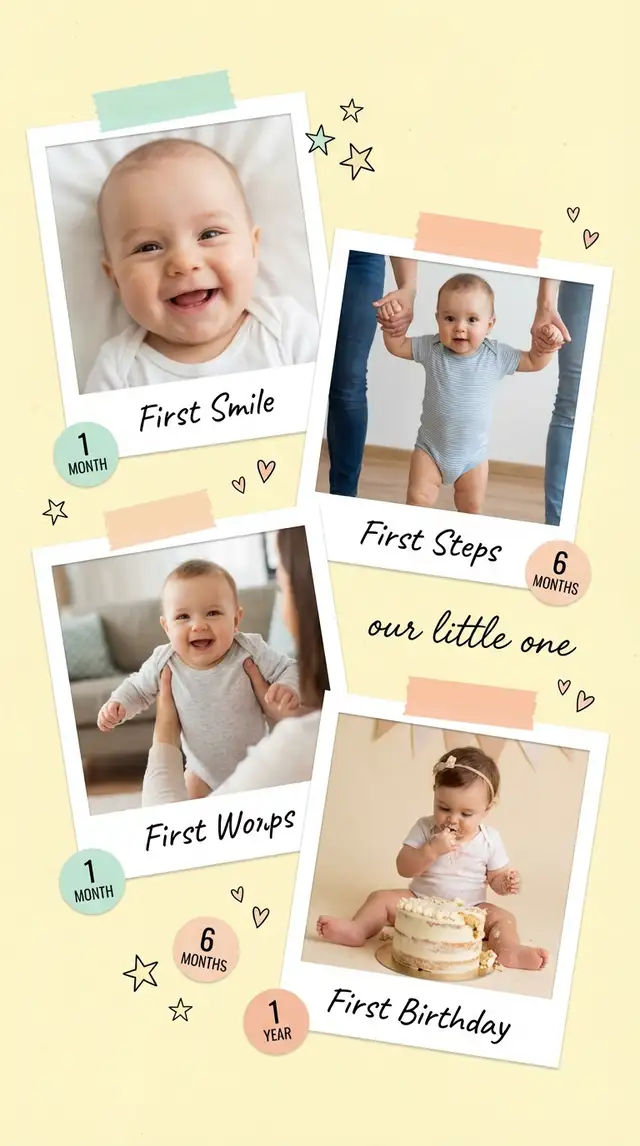
Ingredients
- 4-8 milestone photos from your camera roll (newborn, first smile, sitting up, first steps, birthday -- pick the moments that mark the biggest leaps)
- 1 newborn hospital photo or first-day-home portrait
- 1 first birthday or cake smash photo
- Baby-themed stickers from the Sticker Library (milestone badges, tiny hearts, stars, animals)
- A soft pastel background -- warm cream, blush, or pale butter yellow
- A gentle hand-lettered or clean sans-serif font for month labels
- Optional: detail shots of a hospital bracelet, tiny shoes, or the coming-home outfit
Steps
-
Start with a grid that fits your photos
Open Grids and pick a 2x2 or 2x3 layout depending on how many photos you have. Bump up the border width to give each photo breathing room, and round the corners generously. Soft, rounded frames echo the roundness of baby cheeks.
-
Fill each cell with a milestone
Import your photos and drop them into the grid in order -- newborn first, birthday last. Tap each one to crop and reposition, zoom in on faces, center the smile. If a cell feels weaker, crop tighter; a close-up of a laughing face forgives almost any lighting problem.
-
Set a warm pastel background
Swipe to Backgrounds and choose a soft solid color -- pale peach, butter cream, or dusty mint. Browse the Sticker Library for a subtle canvas texture if you want a little warmth beneath the grid. Avoid stark white; pastels feel more like a nursery wall.
-
Label each month
Tap Text and add small month markers beneath or inside each cell: "one," "two," "three" or "1 month," "2 months." Pick a hand-lettered font in warm gray or muted blush. Keep the size small and the placement consistent -- the labels should support, not compete.
-
Decorate with baby stickers and a title
Open the Sticker Library and search for baby milestones, tiny stars, or soft animal illustrations. Tuck them into corners of the grid, not over faces. Add the baby's name across the top using Custom Text in something warm and hand-touched, with the birthdate in smaller type below.
-
Warm everything and save
Tap each photo and use Photo Editing to nudge warmth up slightly and push toward peach and golden tones. This unifies twelve months of different cameras and lighting into one tonal family. Save at full resolution -- for printing, export at the highest quality.
Variations
Timeline Poster Version
Skip the grid. Open Freestyle and run your milestone photos in a single horizontal line with generous spacing. Add the newborn photo large on the left and the birthday photo large on the right as bookends. Save at a wide aspect ratio for a nursery wall print.
Instagram Carousel
Break the year into four slides of three months each, plus an opening slide with the name and birth stats. Use the same background and label style across all slides so swiping feels like turning pages. Share on the first birthday.
Animated Keepsake
Use Animation to make each monthly photo appear one by one, building from newborn to birthday. Export as a looping video and send it to grandparents -- this is the version that makes people cry.
Tips
- Consistency in monthly photos is everything -- same blanket or same stuffed animal for scale makes the growth unmistakable
- Use Photo Editing to warm the white balance on all photos before placing them; mixed lighting from different months is the fastest way to make a collage feel scattered
- Export as PNG for printing and as high-quality JPEG for sharing via WhatsApp or message
- If printing, save at the largest resolution available -- baby collages tend to get framed and kept forever
You might also like

Vintage Wedding Collage
Some love stories deserve to look like they've already been treasured for fifty years.

Birthday Collage for Mom
A warm, heartfelt collage that says everything a card can't -- the kind of thing she'll screenshot, print, and keep on the fridge until the edges curl.

Graduation Memory Board
Four years compressed into one frame -- the late nights, the people, the becoming.

Holiday Greeting Card Collage
Skip the stock photo card this year -- the best holiday greeting is built from a year of moments actually worth sharing.