How to Make an MLK Day Service Photo Collage
Make an MLK Day service photo collage that credits your volunteer team, protects private details and records what the group actually did.

A service-day page can remember the people who showed up and the work they did without displaying the private circumstances of people receiving help. This walkthrough uses a volunteer-group portrait, preparation, hands at work and the shared materials after the task. It is a record of your team’s day, not a borrowed image of someone else’s need.
In 2027, Martin Luther King Jr. Day falls on Monday, January 18, as listed in the federal calendar. Your community project may be on a nearby date. Use that actual date and the organization’s preferred wording rather than implying official sponsorship.
Ask the group before choosing photographs
Use four images whose makers and subjects agree to the page. Keep the task visible: supplies packed, a garden bed prepared, or the tools put away. Leave out addresses, private lists and recipients unless there is clear permission for that particular use. Record the names of contributors accurately if they want to be credited.
The practice pack contains fictional AI volunteer photographs. It is not a news report, a real organization’s documentation or a photograph of Dr. King.
Step 1: Choose a page for the project’s record
Open the maker and choose landscape 4:3. This gives the group picture room alongside the work details. Decide whether the audience is the team, a participating organization or the public; that decision affects what information belongs on the page.
Step 2: Import only the agreed set
In Photos, select Add photos and load the four JPGs. Check the small thumbnails for readable badges, addresses or papers in the background. Remove a problematic image from the set rather than assuming a tiny final export makes private details harmless.
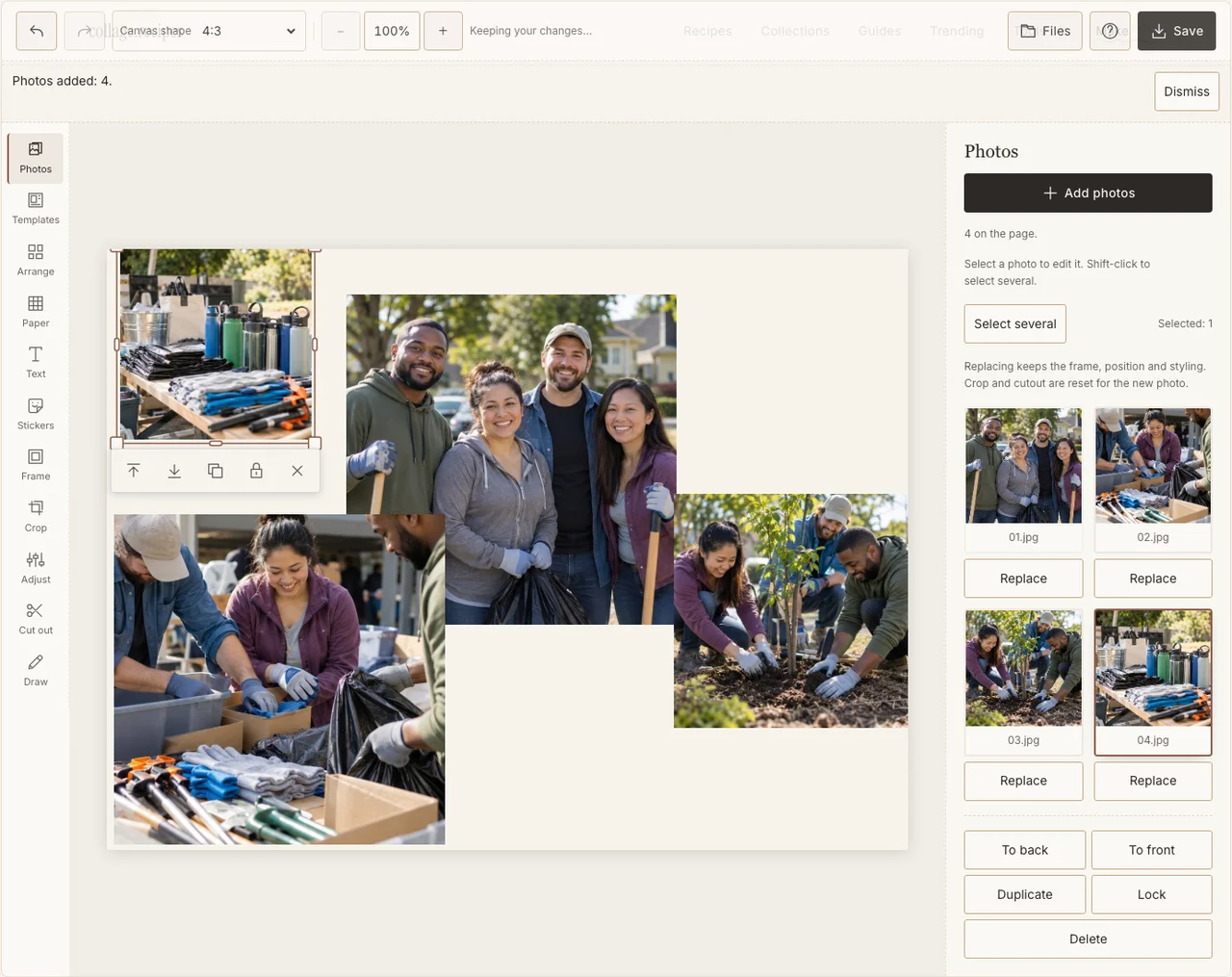
A real desktop-editor capture using fictional AI demonstration photographs.
Step 3: Connect the group with the work
Use Freestyle in Arrange. Keep the group as a readable anchor and place the preparation, action and finished-task detail in order around it. Avoid making a person receiving assistance the page’s anonymous visual symbol; the contribution is the story you are documenting.
Step 4: Make every contributor visible
Use Adjust if an edge of the group photograph is in shadow. Keep a plain, consistent Frame border and enough separation between pictures. If a team member is repeatedly cut out, choose a different crop or another agreed photograph instead of treating their place in the layout as expendable. If your browser reports that photo adjustments are unavailable, keep the original colors and continue with frames, text and saving; those controls still work.
Step 5: Write what happened, without inventing an outcome
Use Text for the project name, actual date and a short accurate description. Credit a partner only with its agreement. Choose a quiet Paper color so the caption is readable. Do not add an unverified quotation, a fabricated number served or a promise about the project’s long-term effect.
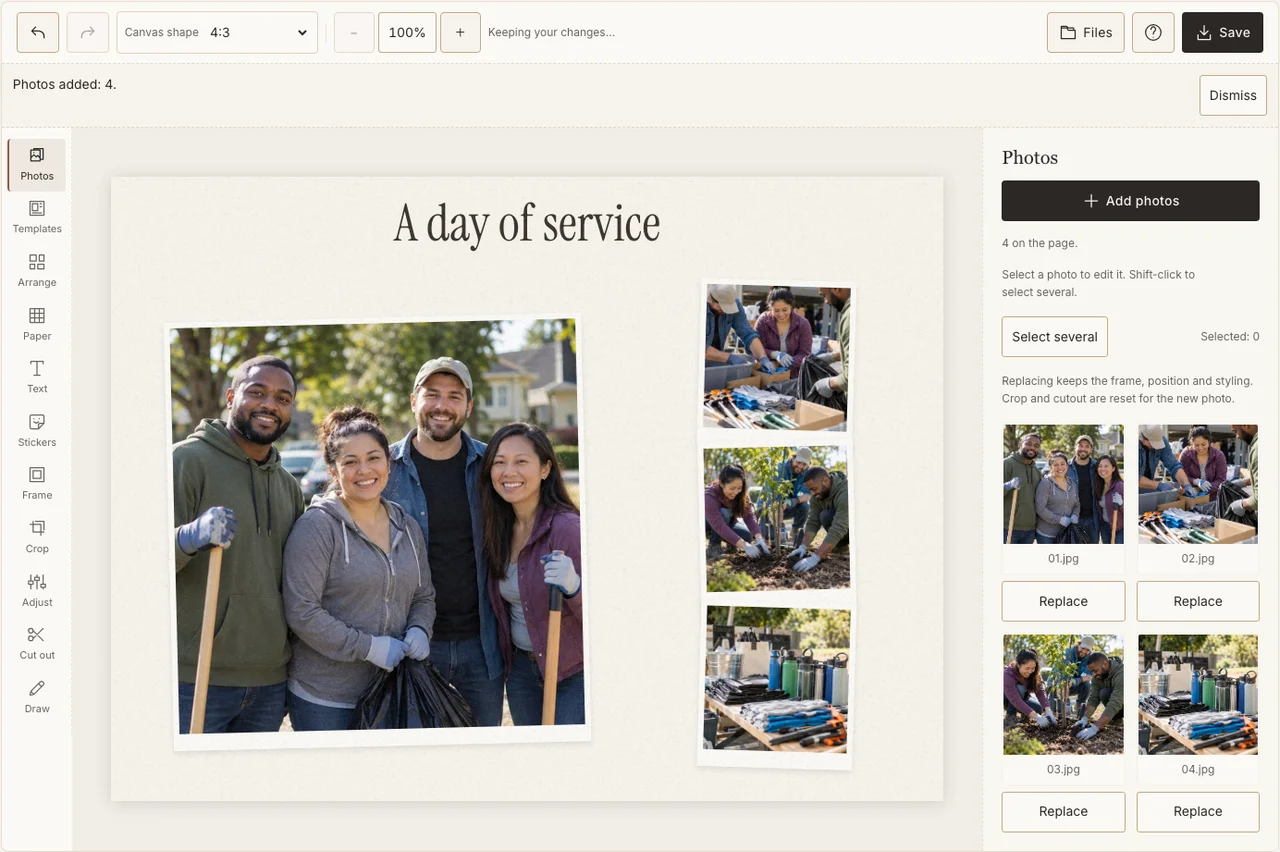
A real desktop-editor capture using fictional AI demonstration photographs.
Step 6: Get a private proof checked
Choose Save and Share, then download the JPG. Send the draft to the people responsible for the project’s communications before posting it publicly. Keep an approved final copy and the original photographs according to the group’s own practice; a collage is not a substitute for its records.
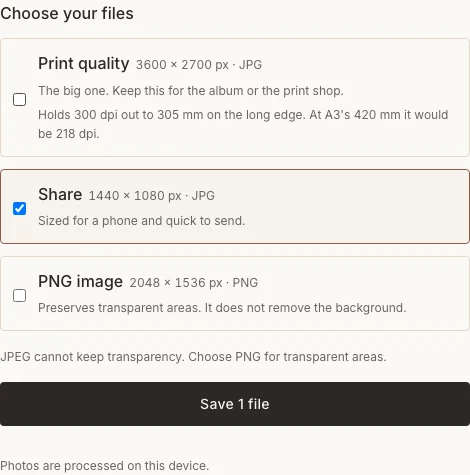
A real desktop-editor capture using fictional AI demonstration photographs.
Check the caption as carefully as the crop
| Uncertainty | Better response |
|---|---|
| You do not know the number of people helped | Describe the task without adding a number. |
| A quotation is remembered loosely | Verify it or leave it out. |
| A team member does not want a public photograph | Use a private version or an agreed alternative image. |
Frequently asked questions
Do I need to include a photograph of Dr. King?
No. This project documents your own service-day activity. Do not imply that a historical photograph or quotation was part of your event without a clear, accurate reason and appropriate rights.
Can the group use the image in a newsletter?
Only after the group checks permissions, names and the intended distribution. This guide explains image preparation; it does not give permission to publish someone else’s photograph or personal information.
Is the sample an actual community project?
No. Its photographs are AI-generated examples. Use your team’s genuine, consented images when making a real record.
Keep making
The general how-to guide explains the editor controls used in this example.