How to Make a Veterans Day Photo Tribute for Your Family
Make a Veterans Day family photo tribute with verified captions, a readable portrait and real maker steps, while keeping private records off the page.

A tribute can honor a person’s service without reducing their whole life to a uniform. This four-photo page places a clear portrait alongside a family photograph, a memory they choose and something from their life today. Start by asking the veteran what they want the page to say, and whether they want it shared.
Veterans Day is November 11. The Department of Veterans Affairs distinguishes this observance honoring veterans from a memorial to someone who has died. In 2026 it falls on a Wednesday; a local event can be on a different day.
Choose photographs and confirm the facts
Collect a portrait, a family moment and two images the person is comfortable including. If an older photo needs a caption, confirm its date, location and names with them or a reliable record. Leave an uncertain detail out or label it as a family recollection. Never invent a rank, award or deployment to fill a blank.
The demonstration pack contains fictional AI photographs for practicing the layout. It is not a historical archive. Do not substitute generated images for your relative’s real service photographs.
Step 1: Make a page with room for a portrait
Open the collage maker and choose the landscape 4:3 canvas for this example. A wider page leaves space for the portrait and a short caption without putting type across a face. Check a printer’s dimensions separately if this will be framed.
Step 2: Add only the images meant for the tribute
Choose Photos, then Add photos, and import the four images. Crop scans so they show the photograph rather than the rest of a document. Exclude service numbers, addresses, medical information and other private details before sharing the finished file.
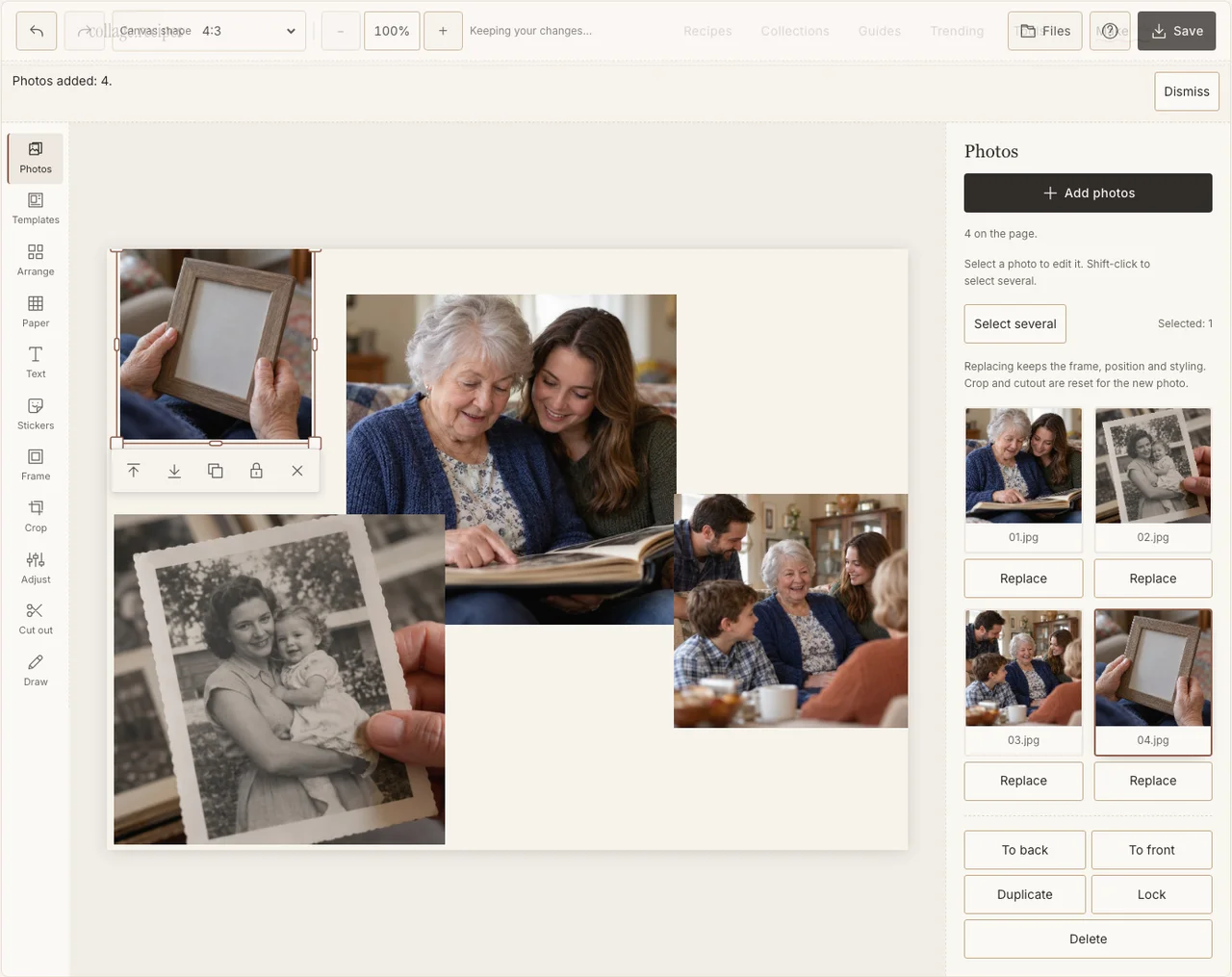
Actual desktop editor. The example photographs are AI-generated demonstrations; the controls and exported collage are real.
Step 3: Keep the person larger than the supporting material
In Arrange, choose Freestyle and give the portrait the largest frame. Place the other three photos in a clear sequence. Keep the veteran’s current family life visible rather than using every spare space for insignia. A photograph does not need a decorative military border to carry its meaning.
Step 4: Treat an older scan gently
Select a faded image and use Adjust to make the face easier to see. Avoid pushing contrast until an old portrait looks like a hard black silhouette. In Frame, use one restrained border style so the difference in photographic eras remains apparent without making the page look disjointed. If your browser reports that photo adjustments are unavailable, keep the original colors and continue with frames, text and saving; those controls still work.
Step 5: Add checked names and a personal line
Use Text for the person’s preferred name and a short sentence they approve. Put the service caption beside the relevant photograph, not across it. Choose a quiet Paper color and leave enough empty space to read. A civilian family portrait should not acquire an invented military title through the design.
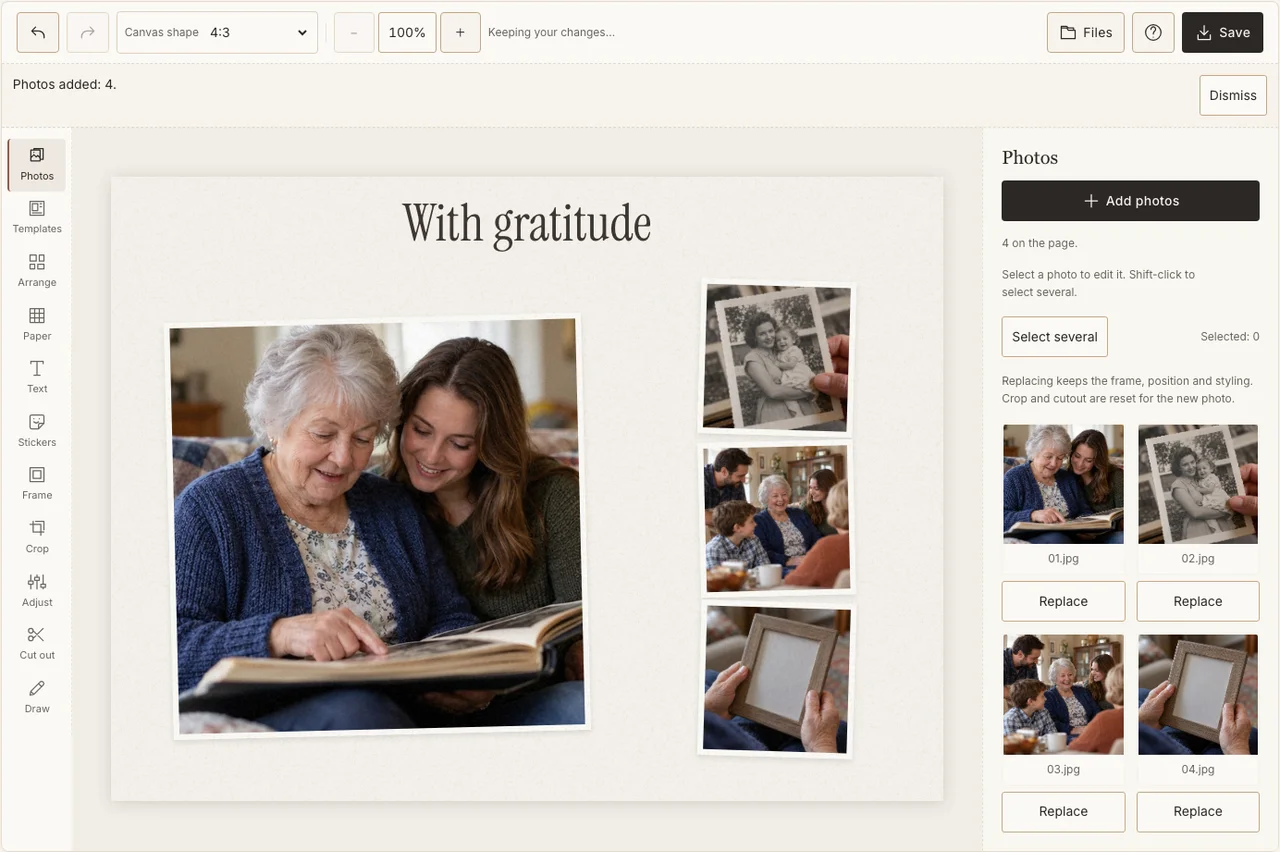
Actual desktop editor. The example photographs are AI-generated demonstrations; the controls and exported collage are real.
Step 6: Make a private proof first
In Save, select Share and download the JPG. Show the proof to the person pictured before posting or printing it for a group. Prepare Print quality only after the words and crop are approved; resolution cannot correct a mistaken caption.
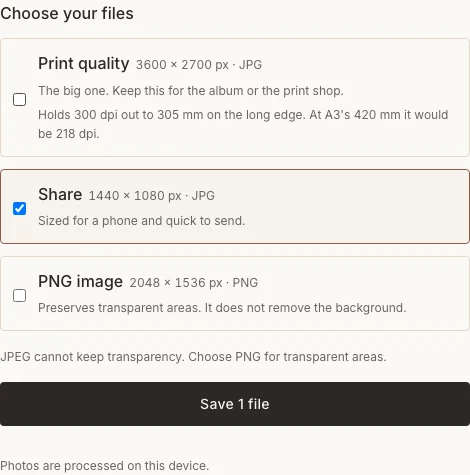
Actual desktop editor. The example photographs are AI-generated demonstrations; the controls and exported collage are real.
Before the page leaves the family
| Check | What to do |
|---|---|
| A date is uncertain | Ask, verify, or leave it out. |
| The scan contains personal records | Remove those details from the image used in the collage. |
| The person dislikes a particular photograph | Replace it, even if it fits the layout neatly. |
Frequently asked questions
Is this also a Memorial Day collage?
The layout controls can be reused, but the occasion and wording should be chosen deliberately. Veterans Day honors veterans; a remembrance page for a person who has died is a different family project.
Can I include an AI-generated old photograph?
The practice images are clearly fictional. For a real tribute, do not create a false historical photograph or service record. Use a genuine picture, a confirmed memory in text, or leave the space open.
Should every image have a caption?
Only when a caption adds something useful and true. One verified name and a clear year can be more valuable than four uncertain descriptions.
Keep making
For handling an older print in a keepsake, see the photo-size reference. It describes specific formats rather than guessing the dimensions of every family photograph.