How to Make a Halloween Photo Collage
Make a Halloween photo collage in your browser, from choosing costume photos to arranging six frames, adding names and downloading a finished keepsake.

A costume-night collage needs the person inside each outfit. A page full of pumpkins can look seasonal and still say nothing about the friends who were there. This walkthrough uses six photos from one evening: a group, preparations, a handmade detail, the pumpkin, the kitchen and the tired final pose.
Halloween falls on October 31, 2026, a Saturday. The calendar reference confirms the date; your gathering may be on another evening. Put the actual night on your file and caption. The sample is a party memory, not a trick-or-treat invitation or a children’s worksheet.
Choose six different moments
Keep one clear group photo for the largest frame. Add a getting-ready shot, an outfit detail and the end-of-night candid before choosing decorations. Leave out an almost identical group pose to make room for someone who is otherwise missing. Ask the people pictured before making the page public.
To follow along, download the demonstration photos, unzip them, and use the JPGs. They are fictional AI examples. Your own gathering will make a better personal keepsake.
Step 1: Start with a square page
Open the collage maker and choose 1:1 under Canvas shape. The square gives a group picture and several smaller moments a shared page. Choose the shape before laying out costumes; changing it at the end can clip a hat or wing.
Step 2: Add the night’s photographs
Open Photos, choose Add photos and select the six files together. Check the thumbnails before arranging anything. Rotate a sideways image or replace a near-duplicate now, while it is still easy to see the whole set.
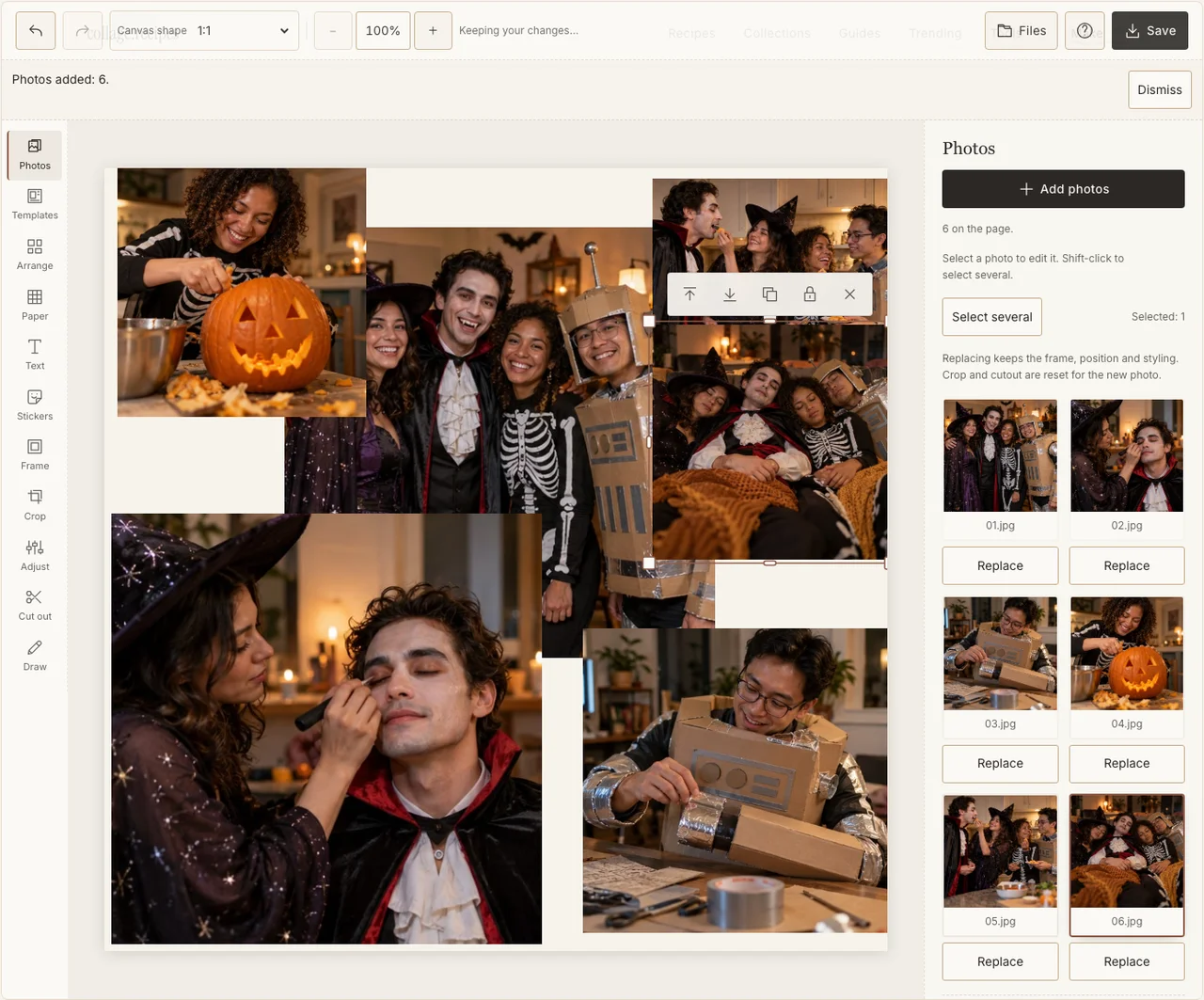
Actual desktop editor. The example photographs are AI-generated demonstrations; the controls and exported collage are real.
Step 3: Give the group the largest frame
In Arrange, use Freestyle so you can make the group wider than the supporting photos. Put the group on the left and the smaller moments on the right, reading from preparations toward the late-night kitchen. Keep every costume’s defining feature inside its frame; the robot’s cardboard head needs space above the face.
Step 4: Keep dark photographs readable
Select a dark picture and open Adjust. Lift its brightness until expressions become visible, keeping the room’s amber light. In Frame, a narrow cream border separates neighboring dark photos. You do not need to turn every photograph orange to make the page feel like Halloween. If your browser reports that photo adjustments are unavailable, keep the original colors and continue with frames, text and saving; those controls still work.
Step 5: Add the names people actually used
Use Text for a short heading and, if useful, costume names beside their owners. Leave faces untouched. In Paper, choose a warm light ground that separates the black outfits. A pumpkin from your own photo can stay a supporting picture; it does not have to cover the group as a giant sticker.
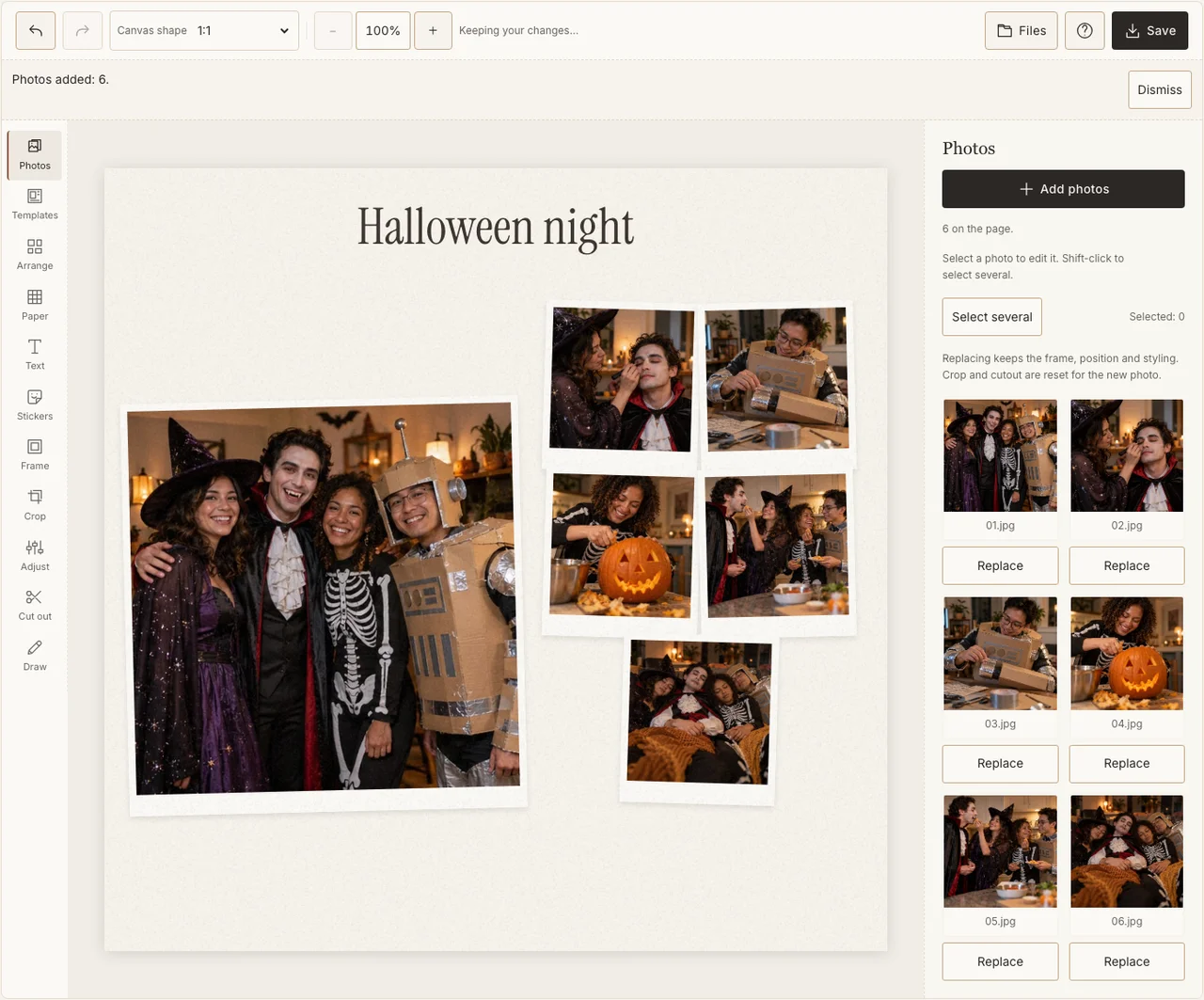
Actual desktop editor. The example photographs are AI-generated demonstrations; the controls and exported collage are real.
Step 6: Save a copy the group can read
Open Save and select Share for a JPG you can send to the group. Prepare the file, download it, then open the downloaded image outside the editor. Read the names at phone size. Keep a year-labeled copy before changing the layout for a different destination.
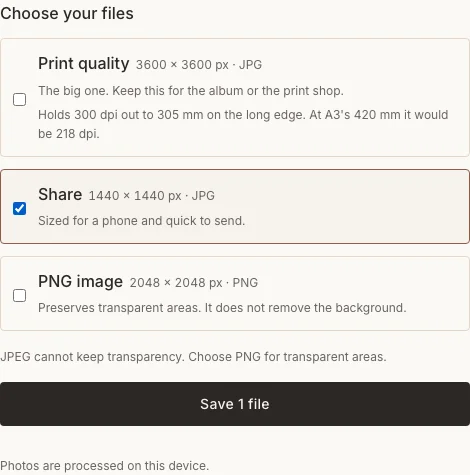
Actual desktop editor. The example photographs are AI-generated demonstrations; the controls and exported collage are real.
If the page feels crowded
| Problem | Change to make |
|---|---|
| A hat or prop disappears | Move the crop within that photo rather than shrinking the whole page. |
| Nobody can read the costume names | Shorten each label and give it its own paper space. |
| Every picture looks the same | Replace a second group pose with getting ready or the last kitchen moment. |
Frequently asked questions
Can I make this before Halloween?
You can make an invitation or a costume-planning page beforehand, but a recap of the night needs the photographs from that night. For an advance greeting, choose pictures you already have and describe them honestly.
Can I make a vertical story too?
Yes. Save this square version first, change Canvas shape to 9:16, and rearrange the frames. Check the hats and captions again; a square export does not become a good story just by being cropped.
Does the example include my photos?
No. The downloadable example uses fictional AI-generated photographs. Photos you add to the maker stay in your browser; the exported image is the file you choose to share.
Keep making
For the photo-selection story and other costume-night variations, read the Halloween costume-night recipe. For the next family gathering, use the Thanksgiving walkthrough.