How to Make a Christmas Photo Collage
Make a Christmas photo collage from your own family pictures, with actual maker screenshots for layout, greeting text, borders and downloading a finished card.

A Christmas collage can be an advance greeting or a record of the celebration. Choose which before you start: a greeting sent in early December uses photographs already taken, while a Christmas-morning recap waits for those moments. This walkthrough makes a four-photo family greeting with its message outside the pictures.
Christmas Day is December 25, 2026 in the Gregorian calendar. The 2026 US calendar confirms that date. Families who observe Christmas on another calendar should use their own date and wording; the editor does not decide religious observance or postal deadlines.
Pick one portrait and three pieces of the year
Choose a clear family picture, a candid moment together, something made at home and a detail that belongs to your household. They do not all need a tree or matching clothes. Check whether everyone pictured is comfortable with the card’s audience before including children’s names or other identifying details.
The downloadable practice photos are fictional AI examples. Unzip them to follow the demonstration, then use your own photographs for the card you send.
Step 1: Decide the destination and canvas shape
Open the collage maker and choose 1:1 for this digital example. For a printed card, choose a supported shape the supplier accepts and check its crop preview before ordering. The current maker does not offer arbitrary canvas dimensions. A square, a 9:16 story and a 5×7 print are different shapes; choosing a tall canvas alone does not make a card fit.
Step 2: Add the four photographs in Photos
Choose Add photos and select the JPGs. Review the tray for the strongest portrait before arranging. If your latest whole-family picture is missing someone, consider a pair of smaller photographs that includes everyone instead of pretending one frame must contain the whole year.
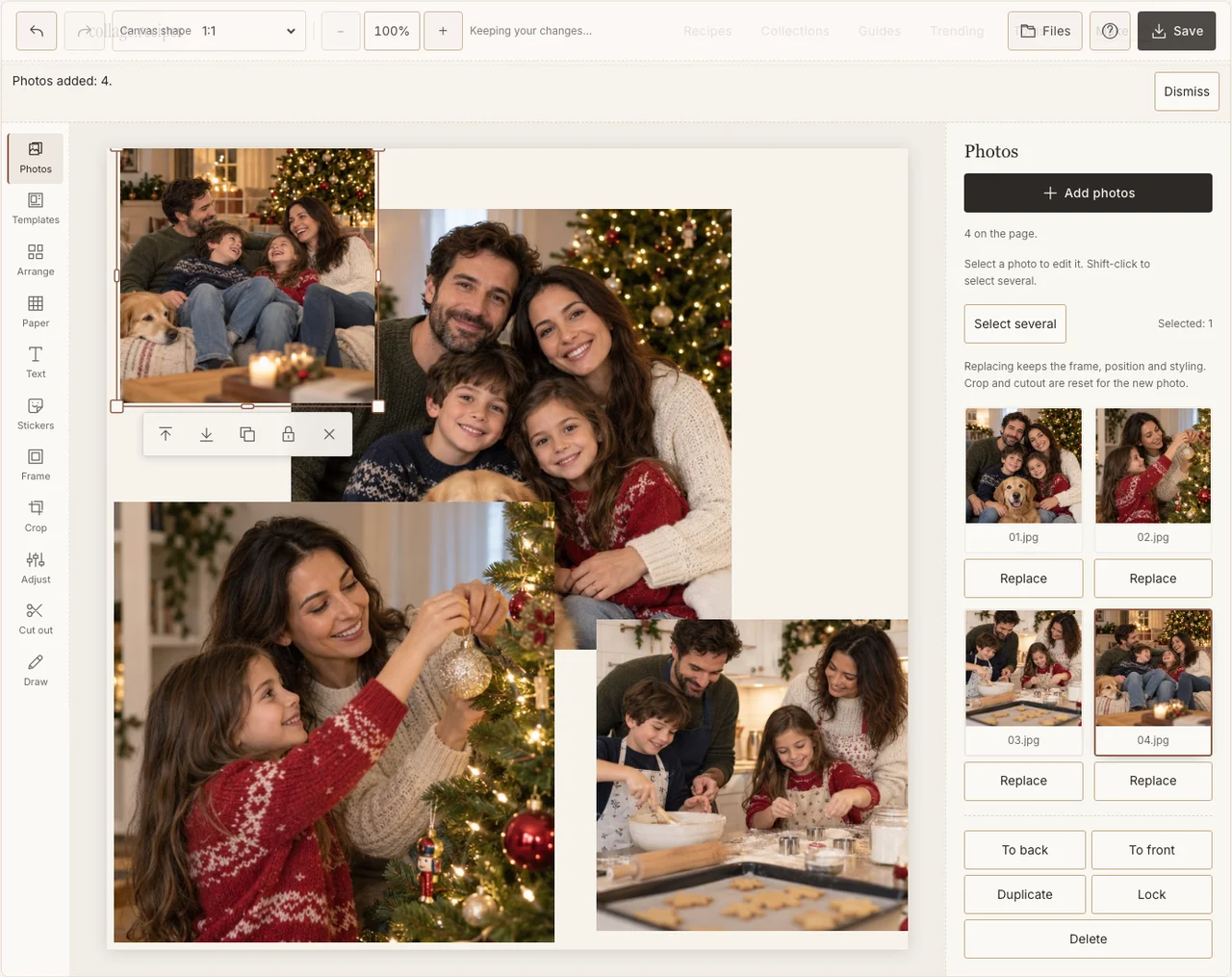
A real desktop-editor capture using fictional AI demonstration photographs.
Step 3: Give the portrait a clear place
In Arrange, use Freestyle to make the family photograph the main frame and place the other three around it. Reserve a strip of empty paper for the greeting. Keep heads away from the trim and avoid putting a text box across a face just because there was no space left.
Step 4: Use one border style to join the pictures
Select the photographs and choose a restrained border in Frame. Then use Adjust on any picture that is much darker or cooler than its neighbors. Keep real differences in season and lighting visible; the border and background can connect the year without making every face the same orange. If your browser reports that photo adjustments are unavailable, keep the original colors and continue with frames, text and saving; those controls still work.
Step 5: Write a greeting the small version can carry
Use Paper for a quiet cream or evergreen ground with enough contrast. Add the greeting and family name in Text, using one short heading and an optional smaller year. The sample says Merry Christmas; use the wording that fits your recipients. Read it at phone size before adding optional decoration.
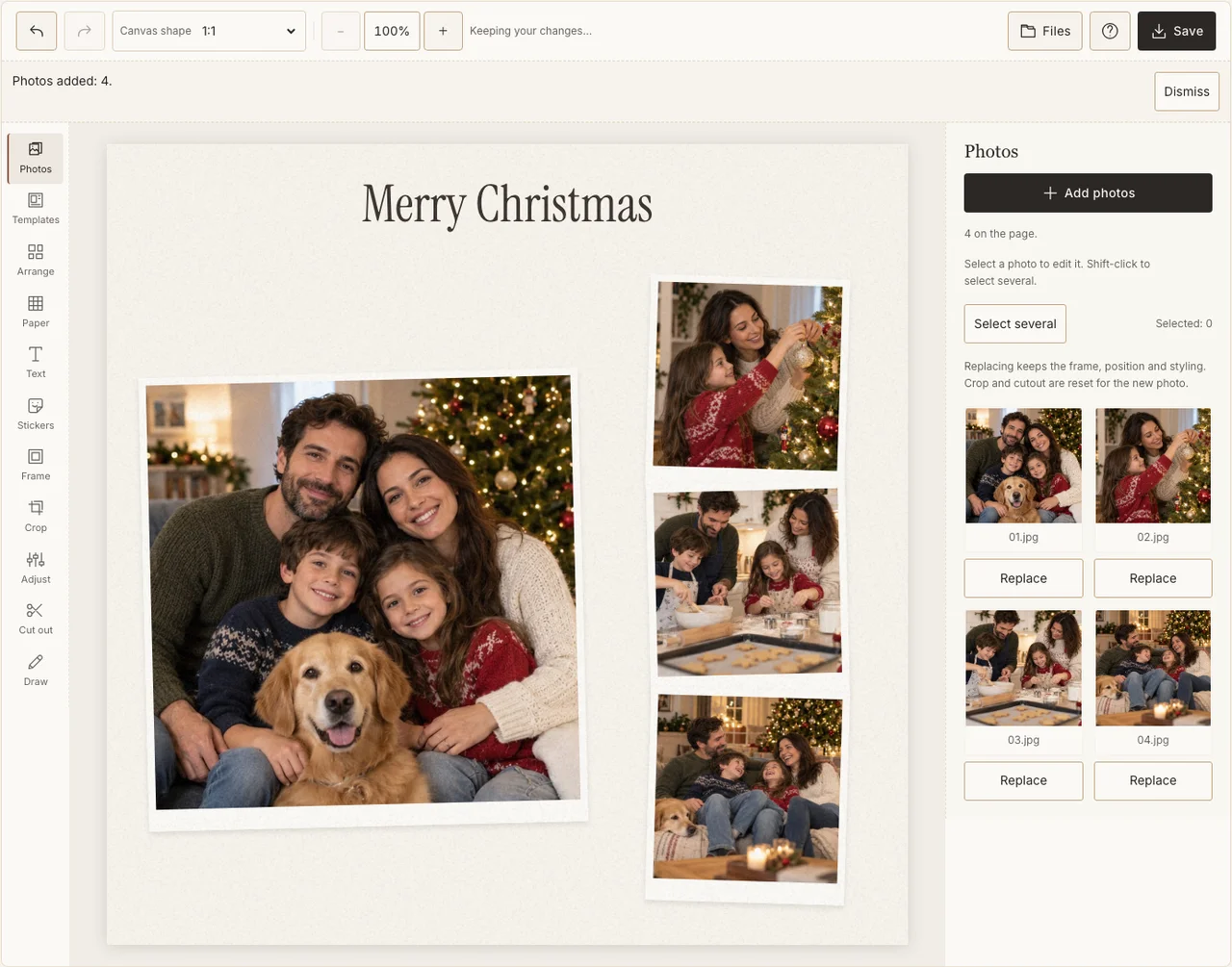
A real desktop-editor capture using fictional AI demonstration photographs.
Step 6: Download a digital proof, then prepare a print if needed
In Save, select Share, prepare the JPG and download it. Open the file and check the greeting, faces and crop. For a print, prepare Print quality and inspect the supplier’s preview, bleed and safe area. Make a small proof before ordering several copies; screen brightness is not a paper-color proof.
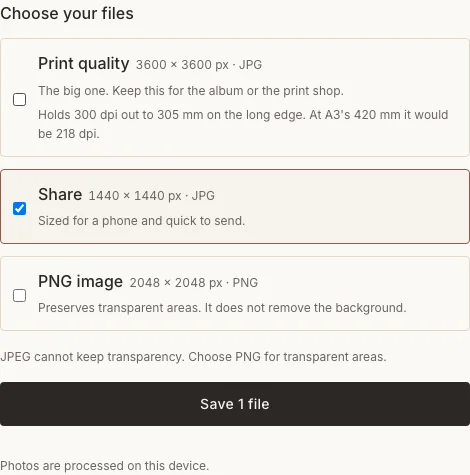
A real desktop-editor capture using fictional AI demonstration photographs.
Resolve these before sending
| Problem | A practical fix |
|---|---|
| The greeting runs across a busy photo | Move it into paper space and shorten it. |
| The print preview crops a head | Change the canvas to the required shape and rearrange before ordering. |
| You have no new Christmas pictures yet | Make an advance card from the year’s photographs, or wait to make the celebration recap. |
Frequently asked questions
Can I use a normal family photo without Christmas decorations?
Yes. The message and a small amount of color can establish the greeting. Photographs of your actual year often make a more personal card than four posed pictures beside the same tree.
Is 9:16 the right shape for a Christmas card?
It is a phone-story shape. A print service may require another ratio, dimensions and bleed. Check its specification against the supported canvas shapes rather than assuming any portrait canvas is a postcard.
Does the maker export animated Christmas videos?
This walkthrough produces a still JPG or PNG. Do not plan a snowfall video around an animation feature that is not offered by the current maker.
Keep making
For a specific three-to-five-photo greeting concept, use the Holiday Greeting Card recipe. For the meal after it happens, compare the Thanksgiving table walkthrough.